Appearance
System Components
🔖 RFID Tags
What are RFID Tags?
RFID tags are small labels attached to assets. Each tag has a unique chip that stores the asset’s identity.
What You Need to Know:
- Tags are usually UHF (Ultra High Frequency) for better scanning range.
- Tags must be securely fixed to the asset's surface.
- The tag ID is linked to the asset in the backend system.
✅ Tip: Make sure the tag is readable using the scanner after attaching it to an asset.
%20(1).png)
RFID Tags
.png)
RFID Tag Attached to Asset
🔍 RFID Scanner Device
What is the Scanner?
It’s a handheld UHF scanner integrated with a mobile computing unit. It is used to wirelessly detect RFID-tagged assets across rooms, shelves, or storage areas — quickly and accurately, without needing a direct line of sight.
It combines powerful RFID reading capabilities with built-in computing, touch display, and Android OS to work seamlessly with the mobile app.
Key Specifications (for User Awareness)
- RFID Standard: EPC Gen2v2 / ISO 18000-63
- Frequency Range: UHF 865–928 MHz (region-specific tuning)
- Read Range: Up to 8–12 meters for passive RFID tags
- Antenna: Circular polarized for 1D/2D omnidirectional reads
- Read Rate: >700 tags per second
- Trigger: Easy-grip physical scan trigger (ergonomic handle)
- Operating System: Android-based mobile unit (pre-installed app)
- Display: 5.5” HD+ touchscreen (glove and wet touch supported)
- Connectivity: 4G LTE, Wi-Fi, Bluetooth 5.1
- Battery: Hot-swappable, 5200mAh battery with extended usage support
- Durability: IP65/IP67 water and dust resistance
How to Use the Scanner
- Power On the device (both scanner and touch display).
- Open the installed Mobile App from the home screen.
- Pair or verify that the app is connected to the RFID scanner module.
- Select a location or audit mode inside the app.
- Trigger the scan by pressing the yellow scan button on the handle.
- Sweep slowly across the assets in the room — the scanner detects all tags in range.
- Once scanning is complete, review and sync the results.
Best Practices
- ✅ Always charge the device overnight before use.
- ✅ Perform slow, steady sweeps for better tag detection.
- ✅ Use two hands for extended sessions to reduce fatigue.
- ✅ Avoid scanning near metal-heavy environments without stepping back a few feet.
- ✅ Clean the scanner surface with a dry cloth — avoid water or solvents.
✅ Tip: Hold the scanner at waist or chest level and sweep slowly for better accuracy.
.png)
RFID Device
📱 Mobile App
What is the App?
The Mobile App is an Android-based application that works hand-in-hand with the RFID Scanner Device. It allows users and audit staff to scan RFID-tagged assets, perform location-wise audits, assign new assets, and submit reports — all from the palm of their hand.
Designed for field use, the app is lightweight, intuitive, and optimized for rugged mobile devices.
With the mobile app, users can:
- 🔍 Scan and verify assets by location
- 🆕 Assign new assets during audits
- 🛠 Mark assets as Available, Maintenance, or Disposed
- 📤 Submit completed audits to the backend
- 🕘 View past audit history
The app syncs all actions to the backend in real time, ensuring centralized data consistency.
📌 Each feature is explained in detail in the upcoming Mobile App section.
✅ Tip: Always sync after a scan to avoid data loss.
.png)
Mobile Application Home Screen
🖥 Backend Panel
What is the Backend Panel?
The Backend Panel is a web-based control system used by Admins and Admin Users to manage the entire asset infrastructure. It offers centralized control for everything — from asset assignment and audits to user management and reporting.
Key features include:
- 📍 Managing Locations
- 🗂 Organizing Asset Categories and Subcategories
- 🏷 Handling Manufacturers, Vendors, and Asset Masters
- 📘 Assigning General Ledgers to Assets
- 👥 Creating and Managing Users with Role-Based Access
- 📈 Viewing and Exporting Reports
- 📊 Accessing a Dashboard with real-time asset status
📌 Detailed usage of each section is covered later in the manual.
✅ Tip: Use filters to quickly access assets by category, location, or status.
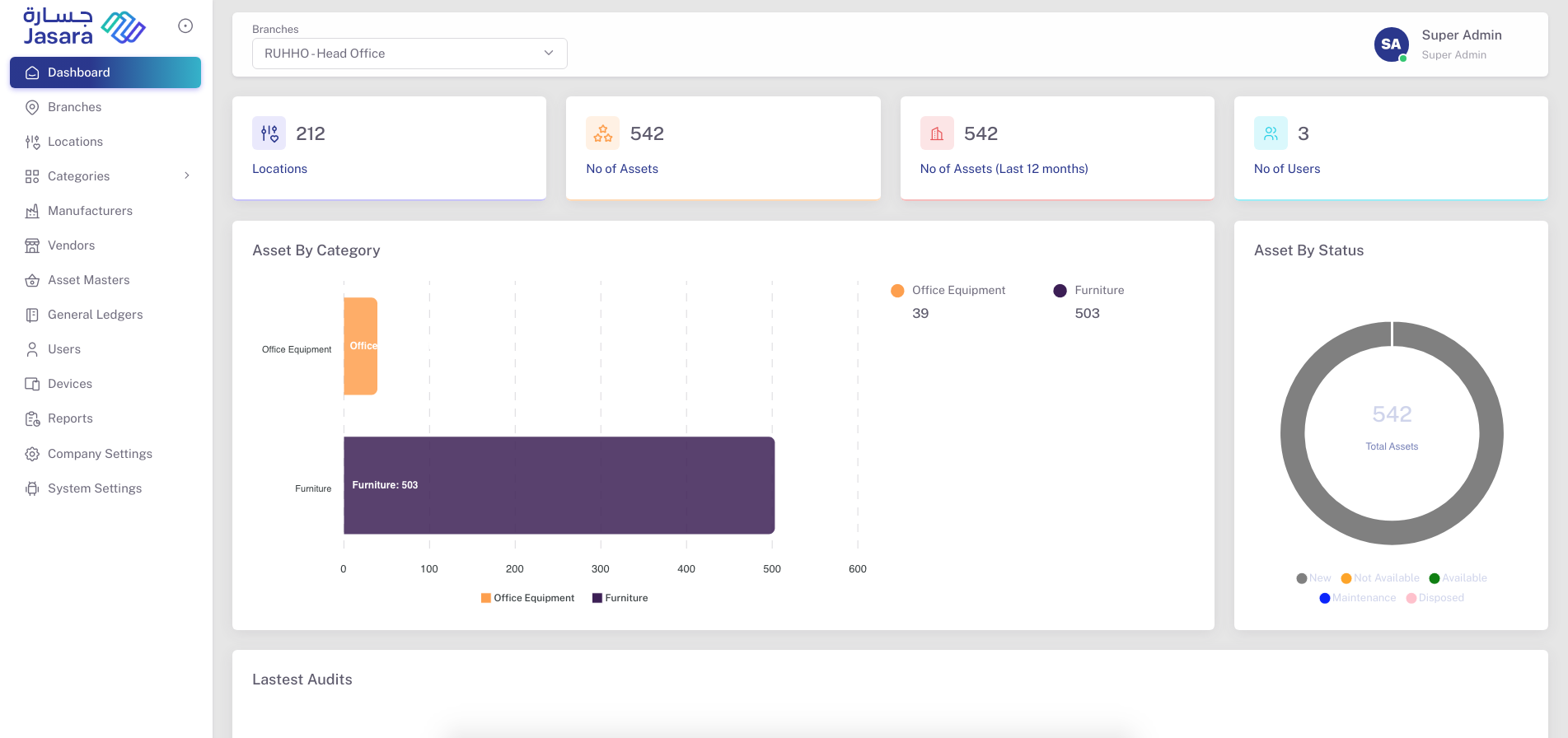
Backend Dashboard
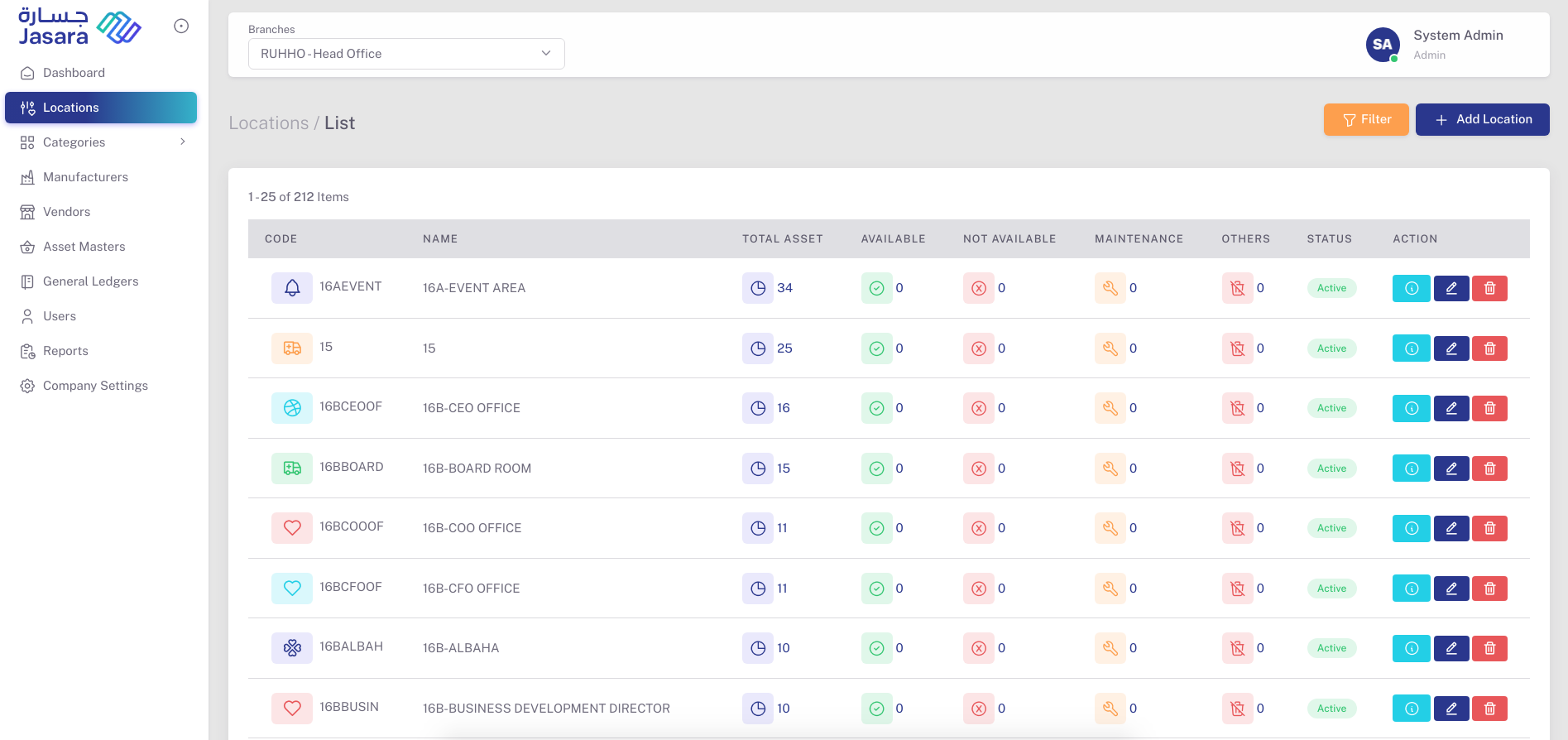
Backend Location Section