Appearance
📦 Inventory Management
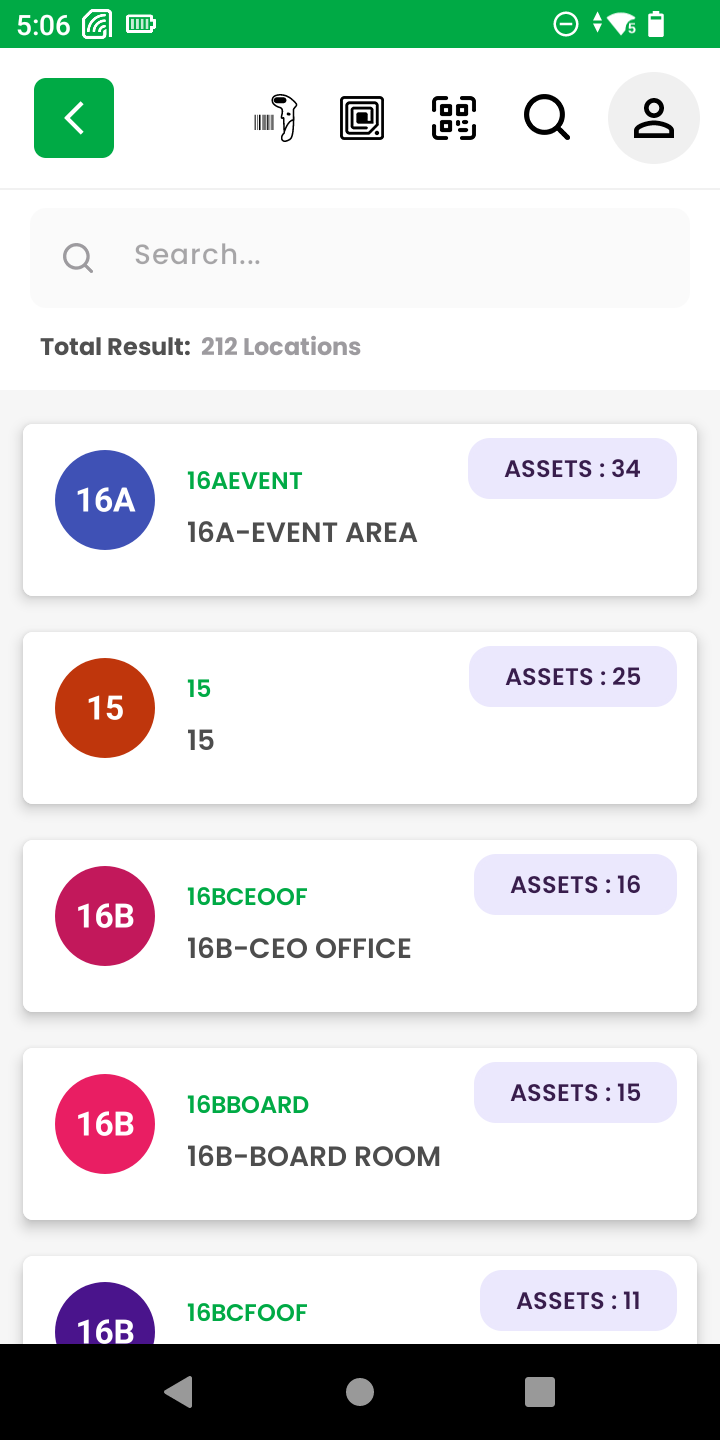
The Inventory List module forms the core of the application’s asset tracking experience. It lets users explore all tagged assets by location, availability, and asset type.
🗂️ Location List
- Displays all synced locations with the number of associated assets.
- Supports search to quickly find specific locations.
- Serves as the starting point for asset browsing.
📍 Location Details
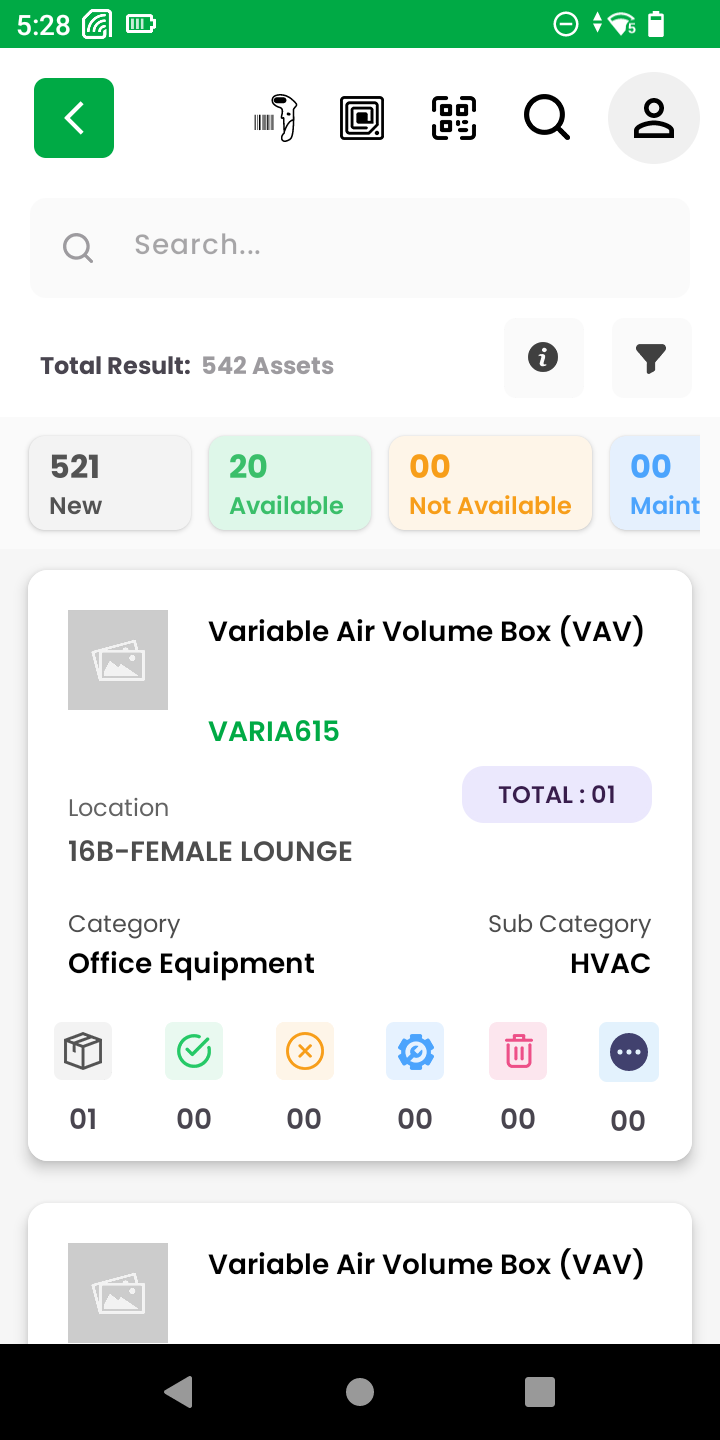
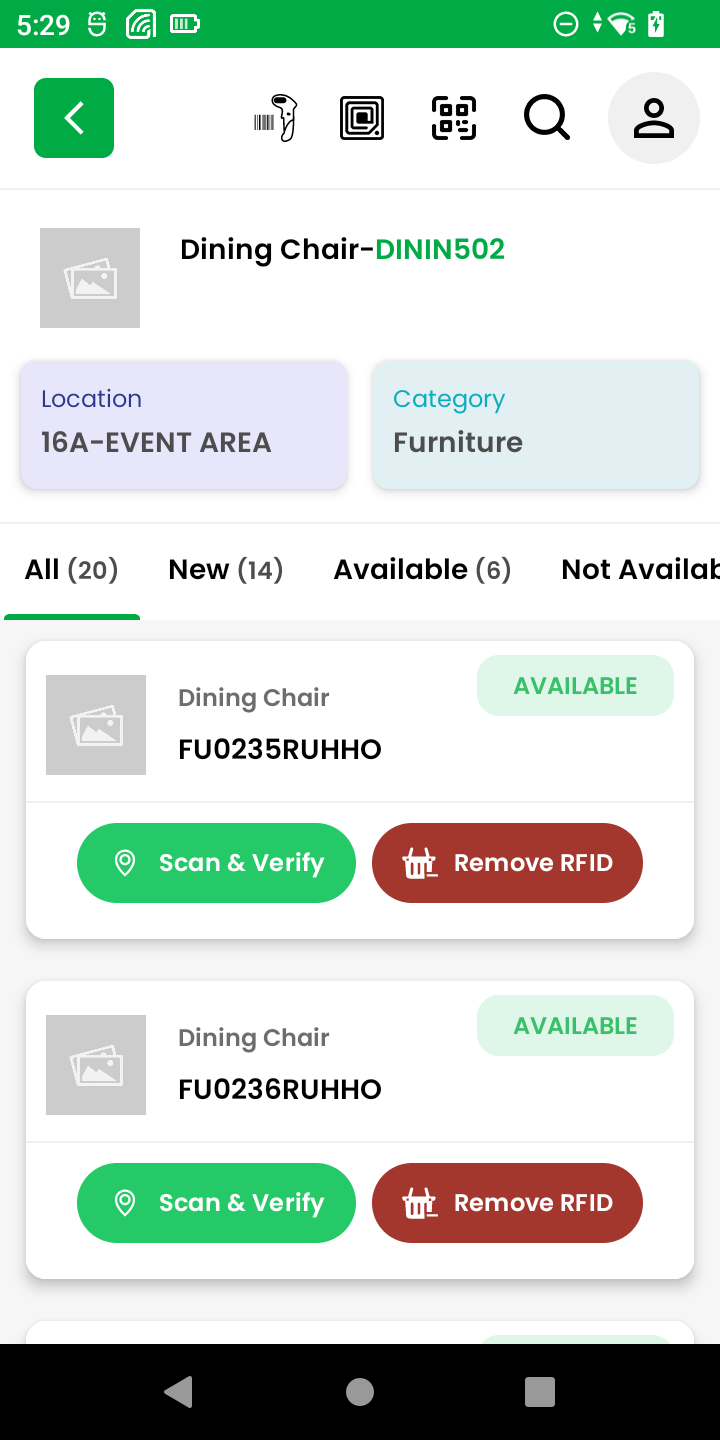
- Shows selected location’s full asset list.
- Summary boxes highlight the number of New, Available, Not Available, and Maintenance items.
- Each asset card provides asset name, tag number, category, and sub-category.

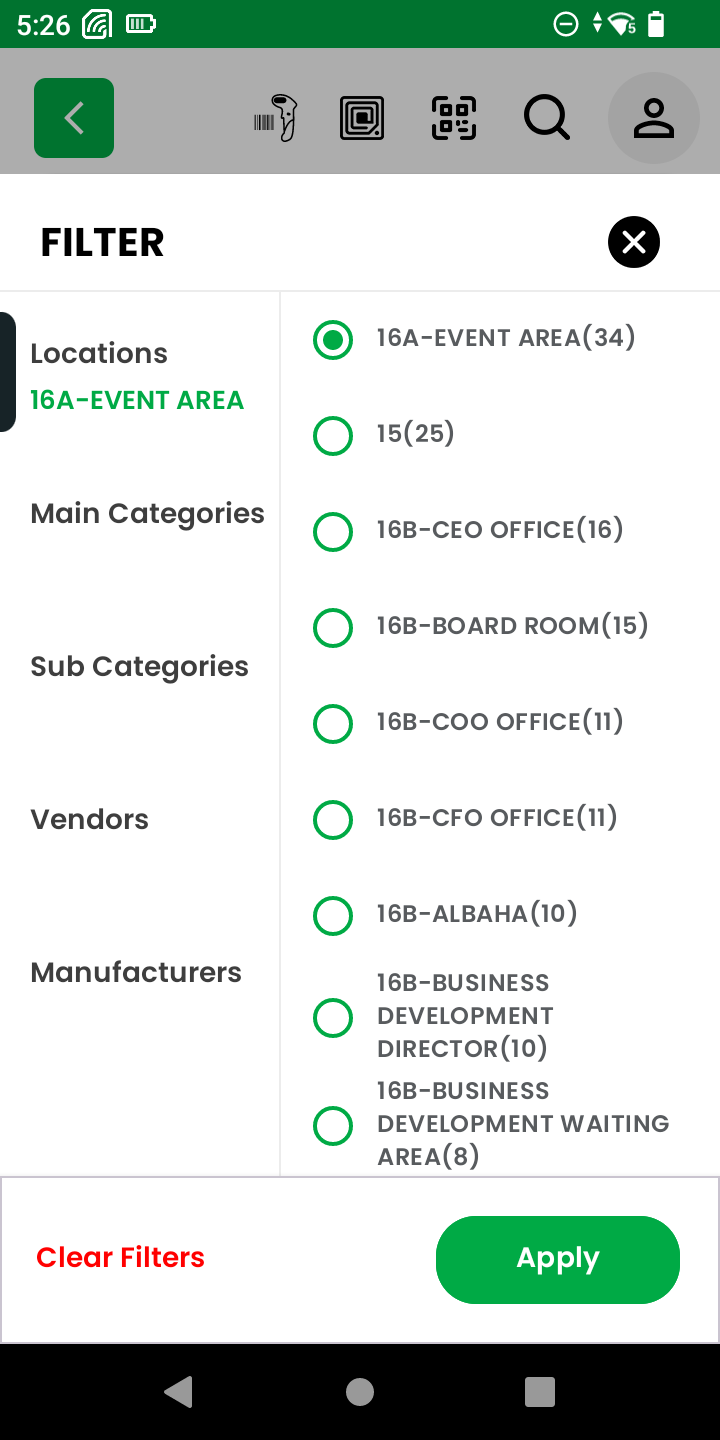
🔎 Filter Options
- Helps narrow down results by:
- Locations
- Main Categories
- Sub Categories
- Vendors
- Manufacturers
- Apply or clear filters easily with action buttons at the bottom.

🆕 New Assets Screen
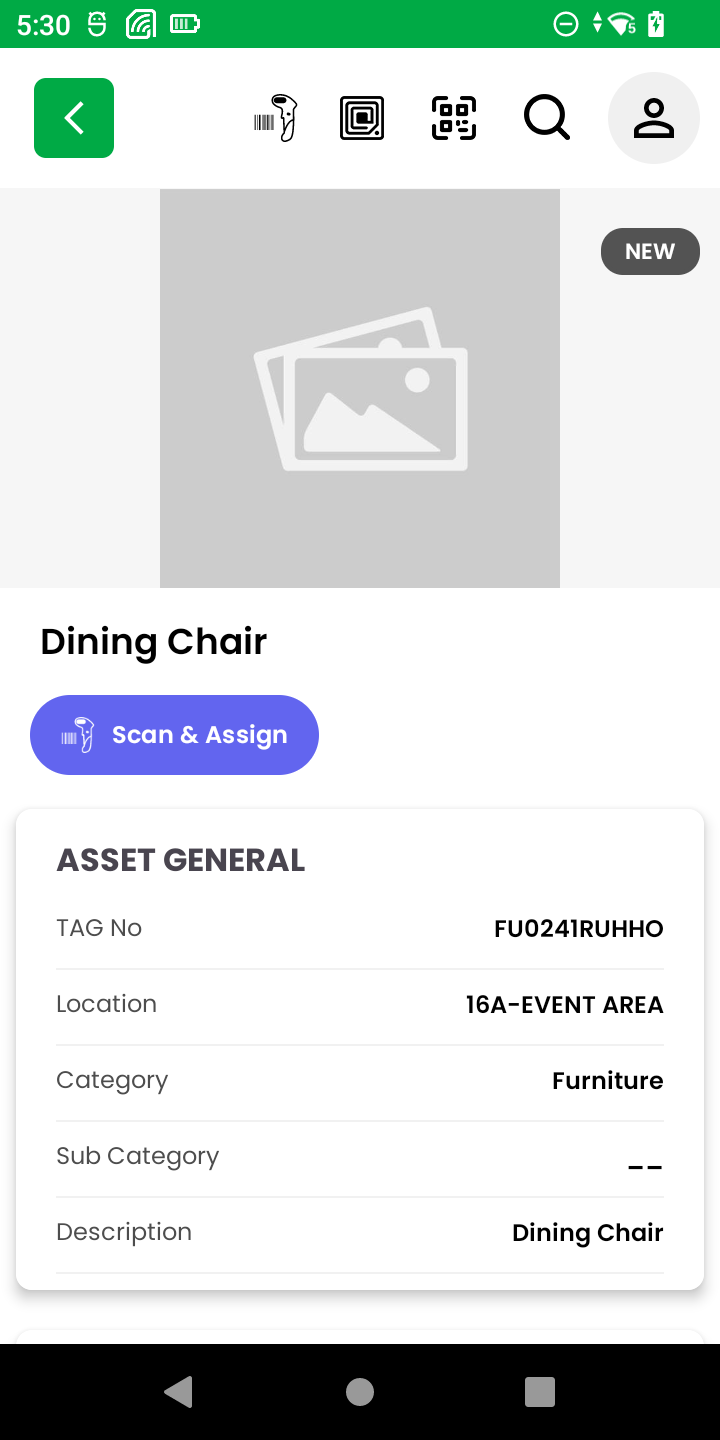
- Displays only assets marked as New.
- Each item includes a Scan & Assign button to initiate RFID assignment.
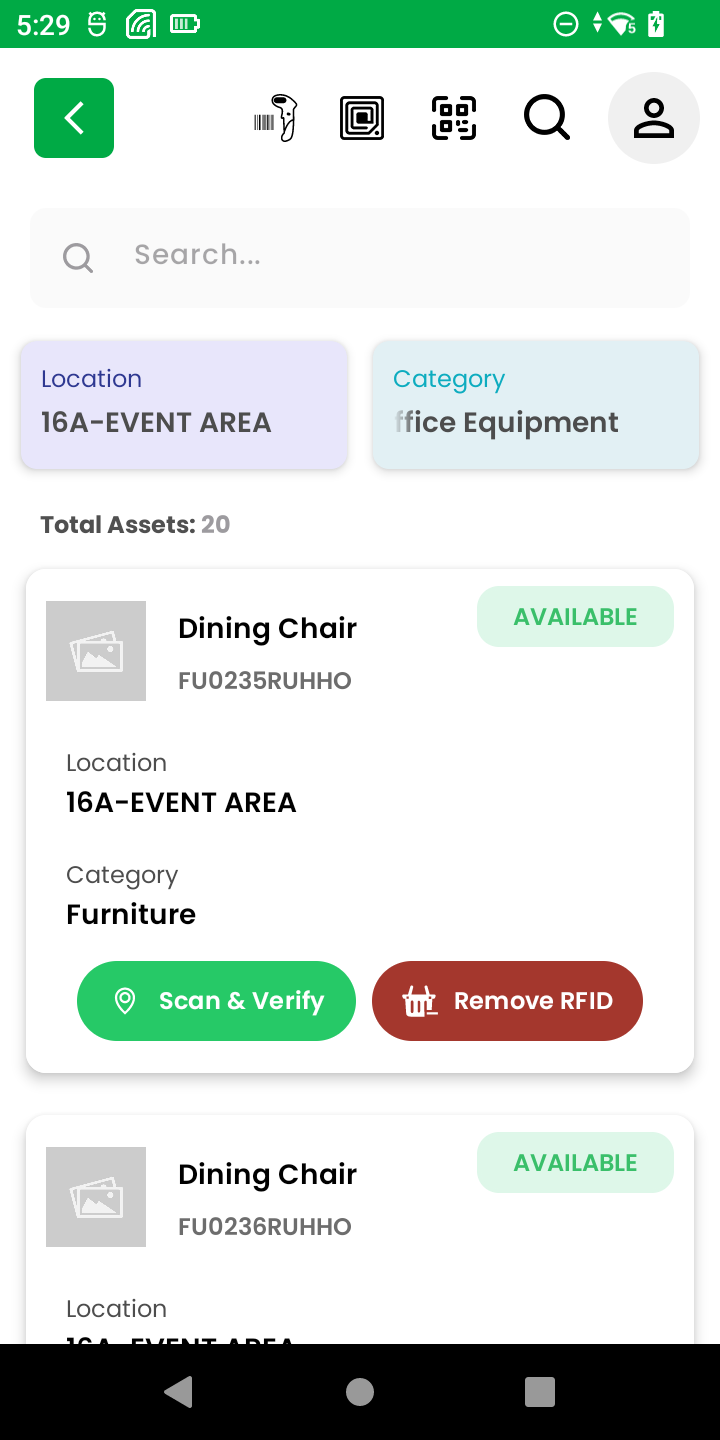
✅ Available Assets Screen
- Displays assets marked as Available.
- Includes Scan & Verify and Remove RFID buttons for field verification or unassignment.
📋 Complete Asset List
- Consolidated view with tabs for:
- All
- New
- Available
- Not Available
- Enables seamless switching between asset states without leaving the screen.
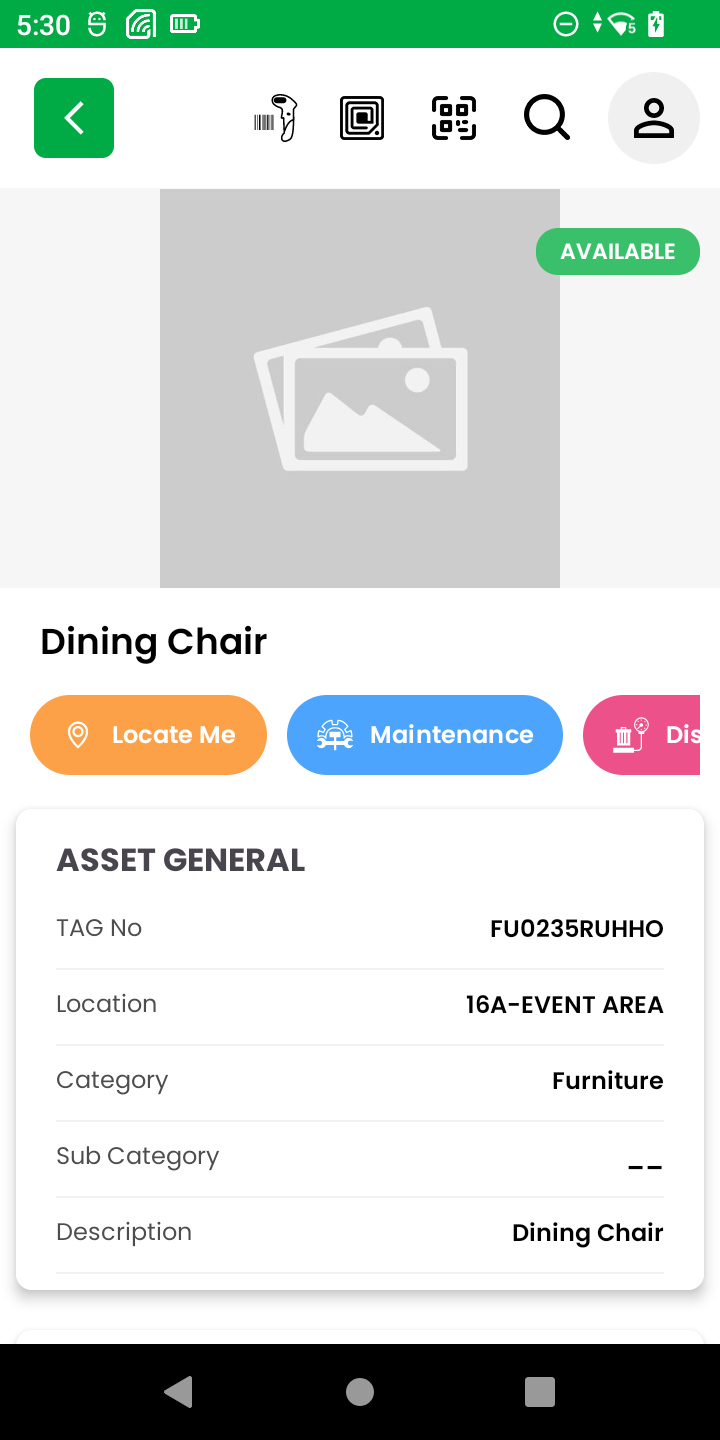
📄 Asset Details
- Shows complete metadata of a selected asset:
- Tag Number
- Location
- Category & Sub-category
- Description
- Action buttons like Locate Me, Maintenance, Dispose, and Remove RFID are available based on the asset’s current state.
This structured inventory flow ensures users can effortlessly navigate, filter, and manage hospital or institutional assets directly from their mobile device.